 Sheets FullShot
Why screenshots of Google Sheets don’t work
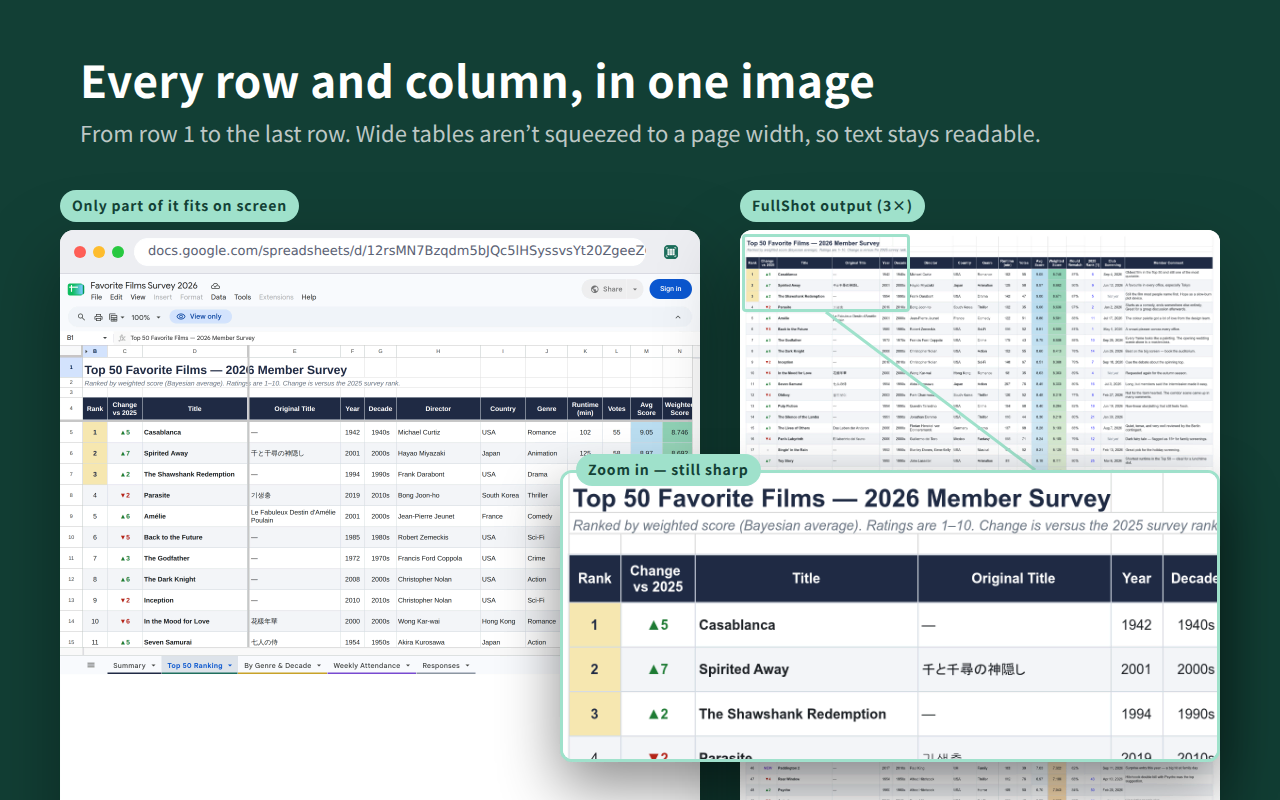
A screenshot only captures what fits on your screen. For a spreadsheet with hundreds of rows or dozens of columns, that means cropped tables, or stitching several screenshots together by hand — and the result is still blurry when you zoom in.
Sheets FullShot uses Google’s own export to capture the whole tab at once, then renders it at high resolution. You get one sharp image or PDF of the entire sheet, ready to paste into a doc, slide, chat, or report.
What it does
The whole sheet in one image
From row 1 to the last row. Wide tables aren’t squeezed to an A4 page width, so text stays at a readable resolution.
Clipboard, PNG, or PDF
Pick 2×–4× resolution and whether to show gridlines. Copy straight to the clipboard, save a PNG, or export a vector PDF.
Your data stays with you
Everything happens in your browser. There’s no server, and nothing is collected or sent anywhere.
How to export a Google Sheet as an image or PDF
- Open your sheet in Google Sheets and click the Sheets FullShot icon in the toolbar.
- Choose the destination (clipboard, PNG, or PDF), then pick the resolution and gridlines.
- Click “Export whole sheet” — the entire tab is captured in one file.
Sheets whose owner has restricted downloading, printing, or copying are not exported.
FAQ
How do I export an entire Google Sheet as an image?
Open the sheet in Google Sheets, click the Sheets FullShot icon, choose PNG (or clipboard), pick the resolution, and click “Export whole sheet”. It captures every row and column in one image, not just the part visible on screen.
How do I save a full Google Sheet as a PDF?
Click the Sheets FullShot icon, choose PDF as the destination, and export. The whole tab is saved as a single PDF that stays vector, so text remains sharp at any zoom.
Why do my Google Sheets screenshots get cut off?
A normal screenshot only captures what fits on the screen, so large tables get cropped or you have to stitch several images together. Sheets FullShot exports the entire sheet from row 1 to the last row in one image, with no manual stitching.
Are wide tables shrunk to fit a page?
No. Wide tables aren’t squeezed to an A4 page width, so columns keep their real size and the text stays readable. You can also choose 2×–4× resolution for extra sharpness.
Does Sheets FullShot read or upload my spreadsheet data?
No. Everything happens in your browser. There’s no server, and nothing is collected, uploaded, or sent anywhere. The export request goes only between your browser and Google. See the privacy policy.
Which formats and resolutions are supported?
You can export to the clipboard, a PNG image, or a PDF, at 2×, 3×, or 4× resolution, and choose whether to show gridlines. PDFs are kept vector.
Support
Contact
Bug reports and requests: [email protected]. Please include “Sheets FullShot” in the subject.
Support development
Sheets FullShot is free. If it helps you, you can support its development here.